

What is Seedream 5.0 Flash?
Released in September 2026, Seedream 5.0 Flash (sometimes written Seedream V5.0 Flash) is the fast, lower-cost tier of ByteDance Seed's Seedream 5.0 image family. Here it creates images from a written prompt and edits them with up to 10 reference images, in eight aspect ratios and at 1K or 2K resolution. Each image costs 4 credits at either resolution. 1K is open to everyone with credits; 2K is unlocked by a paid plan or credit pack.
Because Seedream 5.0 Flash is the lower-cost tier, it suits work where you want several candidates rather than one perfect frame: layout options for a poster or banner, one product shown on different backgrounds, a set of social graphics in a shared style, or a fresh version of a picture you already have. The workspace is right above this text, so you can try an idea the moment you read it.
Sample outputs: one prompt each
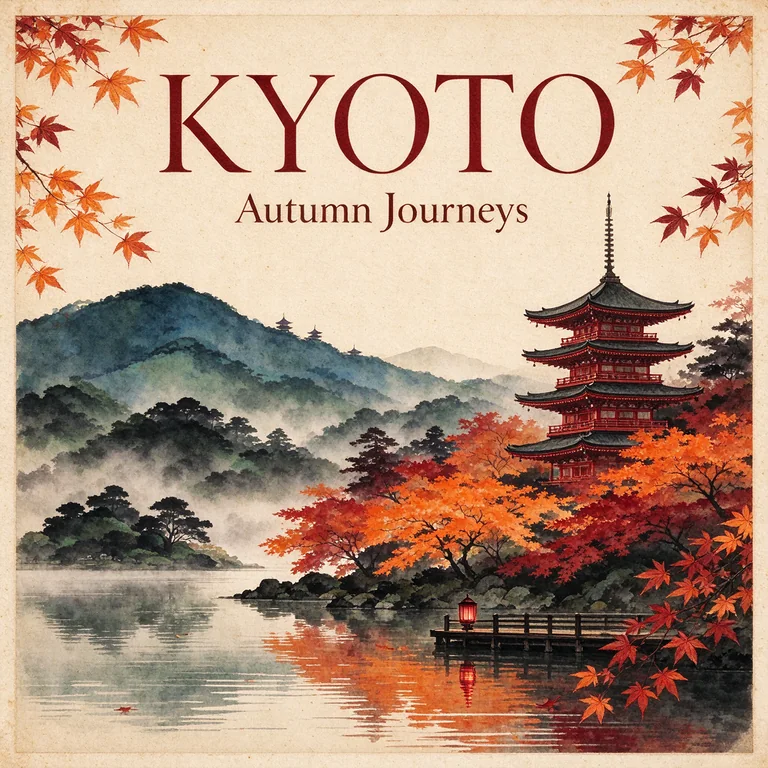
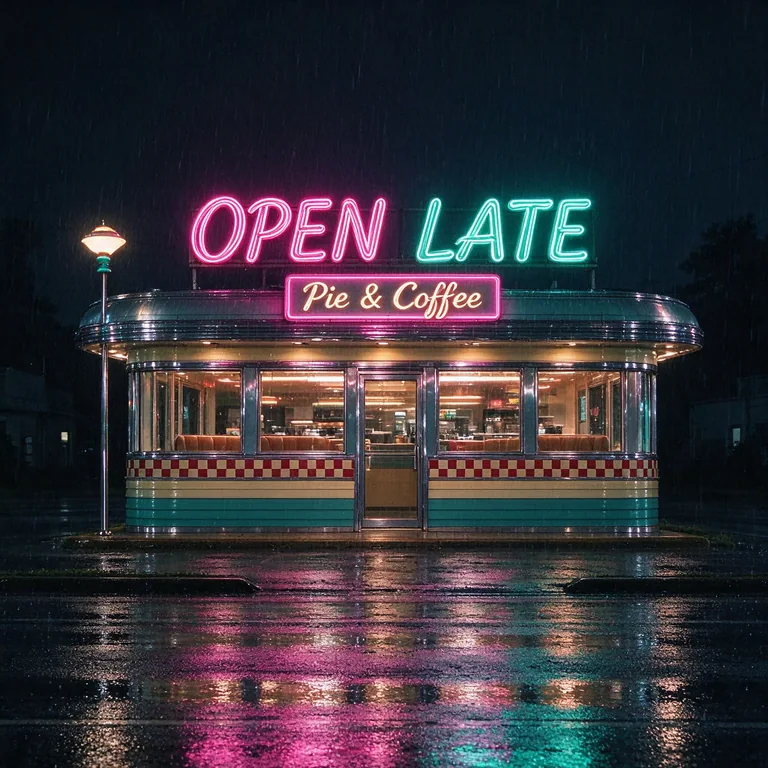
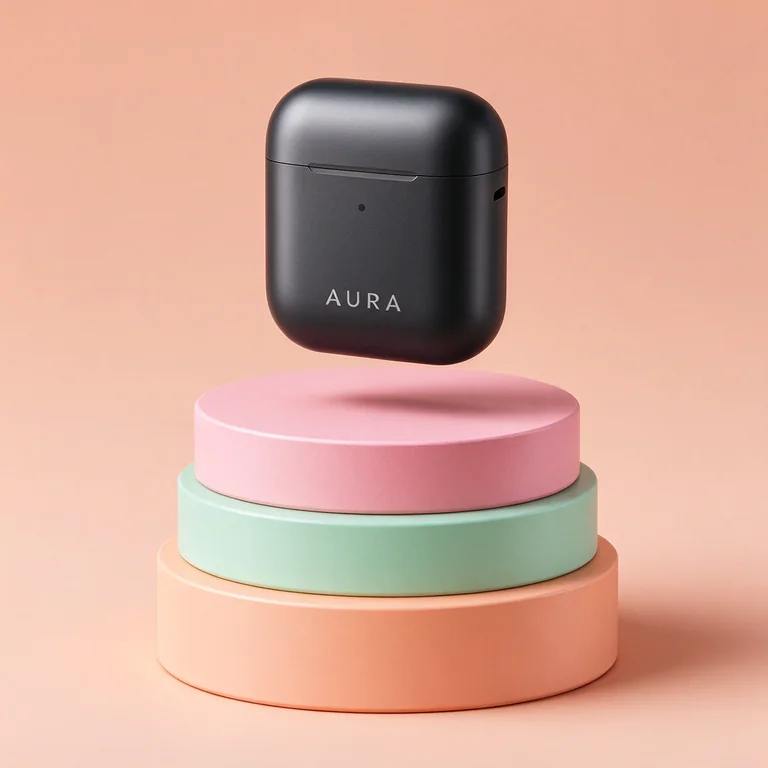
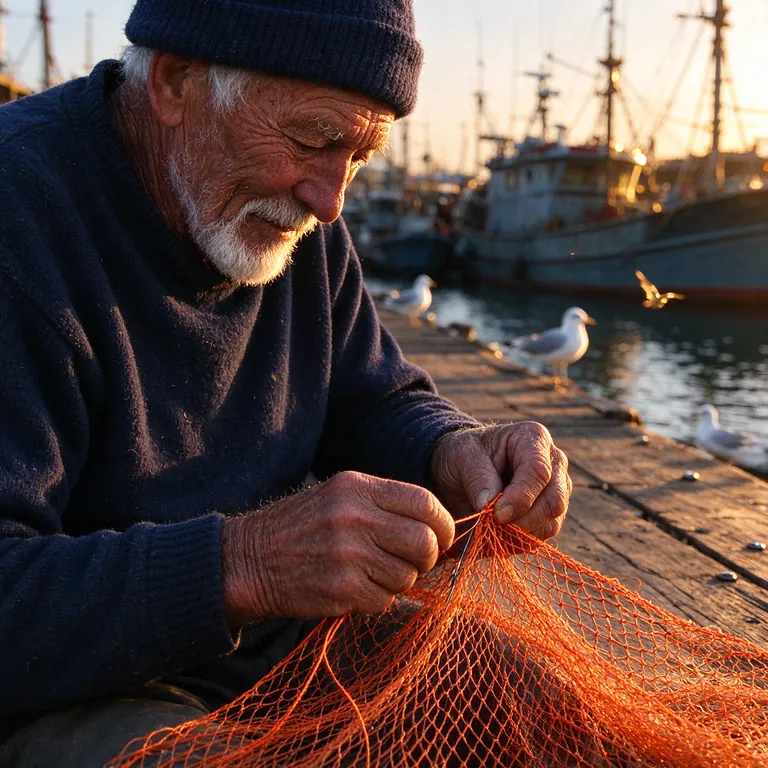
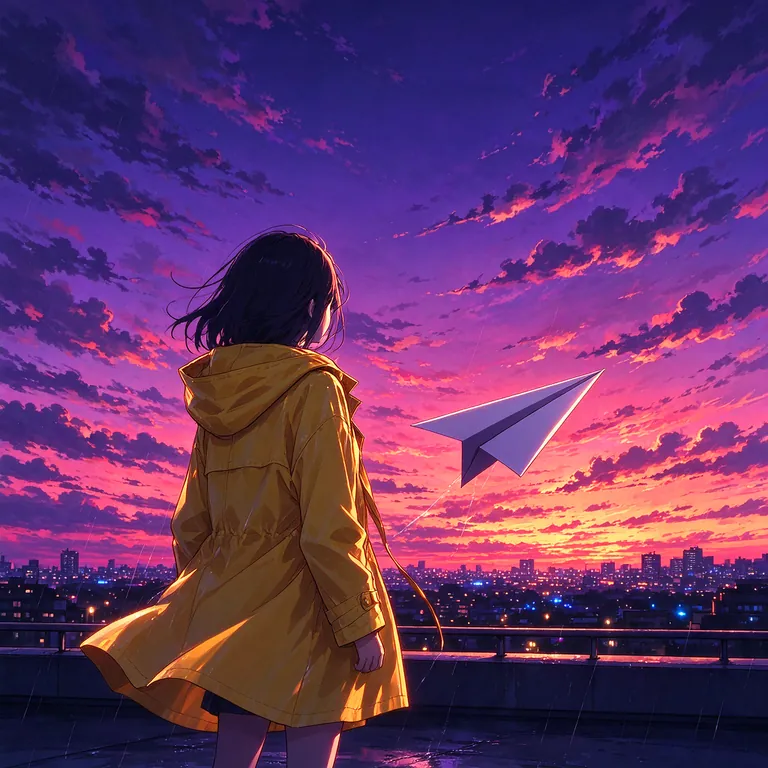
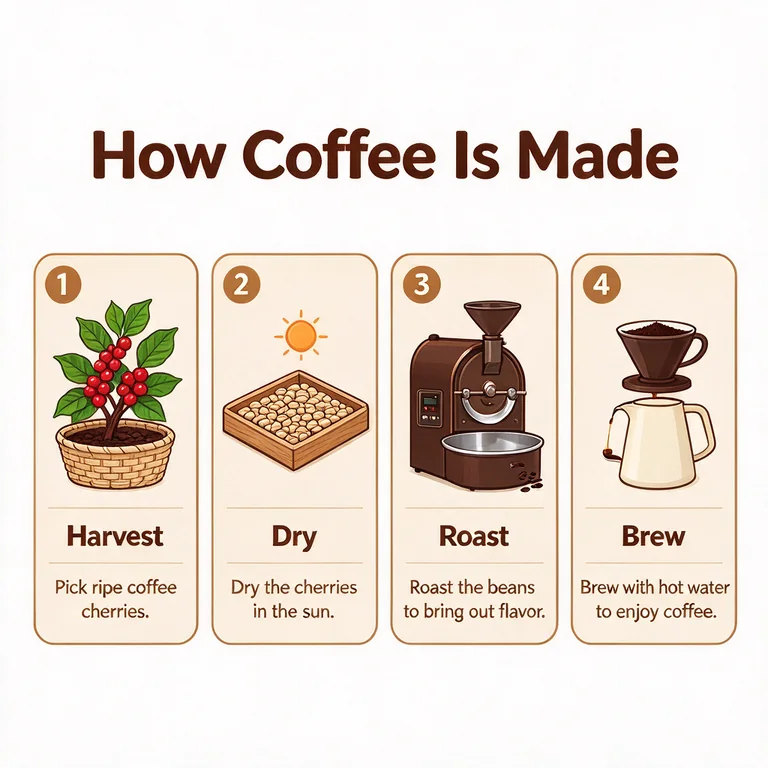
These sample images were made with Seedream 5.0 Flash, each from a single text prompt. They show the range, from lettering and product renders to photo-style images and illustration. Your own results will follow your own prompt.
Work in short loops, not one giant prompt
Start every idea at 1K. A first render settles questions that are hard to answer by imagining: is the subject clear, does the framing leave room for a headline, does the light suit the mood? Once the direction works, run the same prompt at 2K if your account has it unlocked and you want the version you will publish. Change one thing per run, such as the camera angle, the background color or the aspect ratio, so you can tell which change made the difference.
Text to image: write a clear prompt
Choose Text to image and describe what a camera would actually see. Concrete nouns and positions beat mood words: "three peaches in a blue enamel colander on a sunlit windowsill, a kettle steaming behind them, shot from above" gives the model far more to work with than "a fresh summery still life". The prompt field takes up to 5,000 characters, but a few precise sentences are usually enough; add detail only where the first result got something wrong. Name the medium you want, such as a film photograph, a flat vector illustration or a pencil sketch, because it shapes everything else. This mode uses no reference images, so everything the model knows about the picture comes from your prompt. If two instructions cannot both be true, like midday sun over a moonlit street, pick one.
Image to image with up to 10 references
Switch to Image to image before you add pictures. Up to 10 reference images are accepted, in JPEG, PNG or WebP, and each one should have a job. Say what the job is and refer to each image by its upload order: "the sofa from picture 1 in the room from picture 2" is clear, while "combine these" leaves the model guessing. Two or three well-chosen references usually beat ten, so add more only when a detail is still missing. For an edit, write a change-and-keep pair: "make the wall sage green; keep the furniture, the window and the daylight". Then flip between the original and the result to see what moved. A new run can shift details you never mentioned, so treat every result as a fresh draft.
Words inside the image
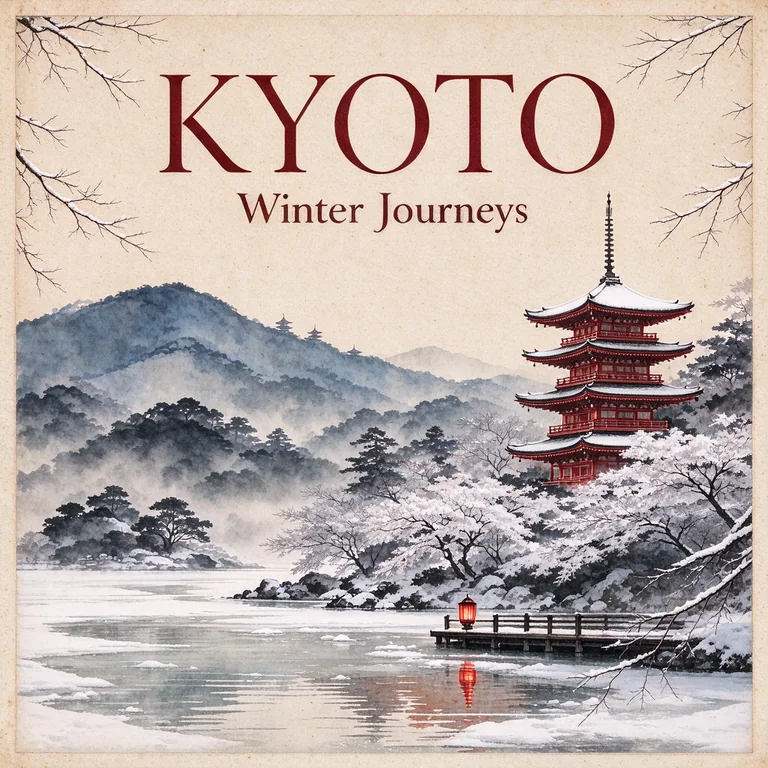
Seedream 5.0 Flash is designed to write text in several languages, so posters, packaging mock-ups and social graphics are within reach. Treat the lettering as a separate instruction: quote the words you want exactly, and say where they sit and what they look like, for example the headline "Open Late" in bold white capitals across the top third. One short line is safer than a paragraph. Accents, unusual alphabets and fine print are the likeliest places for a slip, and language coverage varies, so try your own language with a single short phrase before you build a layout around it. Always read the result letter by letter. When the words carry legal, price or brand weight, leave them out of the prompt and typeset the approved copy in your design tool afterwards.
Eight aspect ratios and where they fit
Choose the frame for the place the image will live. Use 1:1 for avatars and catalog tiles, 4:3 or 3:2 for landscape photos and slides, 3:4 or 2:3 for portrait posters and product cards, 16:9 for thumbnails and web banners, 9:16 for stories and phone wallpapers, and 21:9 for ultra-wide headers. Decide before you generate: a different ratio produces a different composition, so regenerate instead of cropping when the placement changes. Leave room for interface elements, such as a headline band along the top or a safe margin at the bottom of a vertical frame, and describe that space in the prompt.
1K or 2K, and what it costs
Every image costs 4 credits, whether you choose 1K or 2K, and the cost appears beside the generate button before you submit. Use 1K for drafts, web previews and quick comparisons. Choose 2K when the picture will be cropped hard or shown large; fine textures, hair and small details are where the extra pixels help. 1K is open to everyone with credits, while 2K is unlocked by any paid plan or credit pack. You can also pick PNG or JPG for the file: PNG keeps edges crisp for graphics and lettering, and JPG gives a smaller file for photographs. If a generation fails, its credits are returned to your balance automatically.
Check the result before you publish
Before an image goes anywhere, give it a short inspection. First, look at it at the size people will actually see it, a phone screen for a social post or full width for a banner, because flaws that hide in a thumbnail show up there. Second, hunt for the usual slips: misshapen hands or teeth, shadows that fall the wrong way, straight lines that bend, and objects that blend into their surroundings. Third, check that you have permission to use every picture you uploaded, especially photos of real people. Finally, if viewers could mistake the result for a photograph of a real event, say that it is AI-generated.
From a still image to a video
A finished image is often the first frame of something longer. When a Seedream 5.0 Flash image works, bring it into the image to video workspace and describe the movement you want: a slow push-in, a turning head, drifting steam. Generate the image in the aspect ratio of the final video, 16:9 for wide screens or 9:16 for phones, leave empty space where the motion will travel, and avoid tiny text that will wobble once the picture moves. Settling the look as a still first means you spend credits on video only for a frame you already like.
Seedream 5.0 Flash: questions about using it
How do I start with Seedream 5.0 Flash?
Sign in, type a prompt, keep Text to image selected, choose an aspect ratio and resolution, check the credits beside Generate image, and generate. To edit a picture instead, choose Image to image and upload your reference images first.
How many reference images can I add?
Up to 10, in JPEG, PNG or WebP, and only in Image to image mode. Say what each one should contribute and refer to them by upload order.
Which aspect ratios and resolutions are available?
Eight ratios: 1:1, 4:3, 3:4, 16:9, 9:16, 2:3, 3:2 and 21:9. Each can be made at 1K or 2K and saved as PNG or JPG. Pick the ratio first, because it changes the composition.
How many credits does one image cost?
4 credits at both 1K and 2K, shown before you generate. 1K is open to everyone with credits, while 2K needs a paid plan or credit pack. A failed generation returns its credits automatically.
Can Seedream 5.0 Flash write text inside an image?
It is designed to write text in several languages. Quote the words you want, say where they should sit and keep them short. You still need to check the spelling yourself, and for important copy it is safer to add the approved text in a design tool afterwards.
What if the result does not match my prompt?
Change one thing at a time and compare each result with the last one, starting with whatever is furthest from what you wanted. Remove contradictory instructions, and for edits say what must stay unchanged.